

[2026] Pass Key features of SC-401 Course with Updated 299 Questions
SC-401 Sample Practice Exam Questions 2026 Updated Verified
Microsoft SC-401 Exam Syllabus Topics:
| Topic | Details |
|---|---|
| Topic 1 |
|
| Topic 2 |
|
| Topic 3 |
|
| Topic 4 |
|
NEW QUESTION # 135
You have a data loss prevention (DLP) policy configured for endpoints as shown in the following exhibit.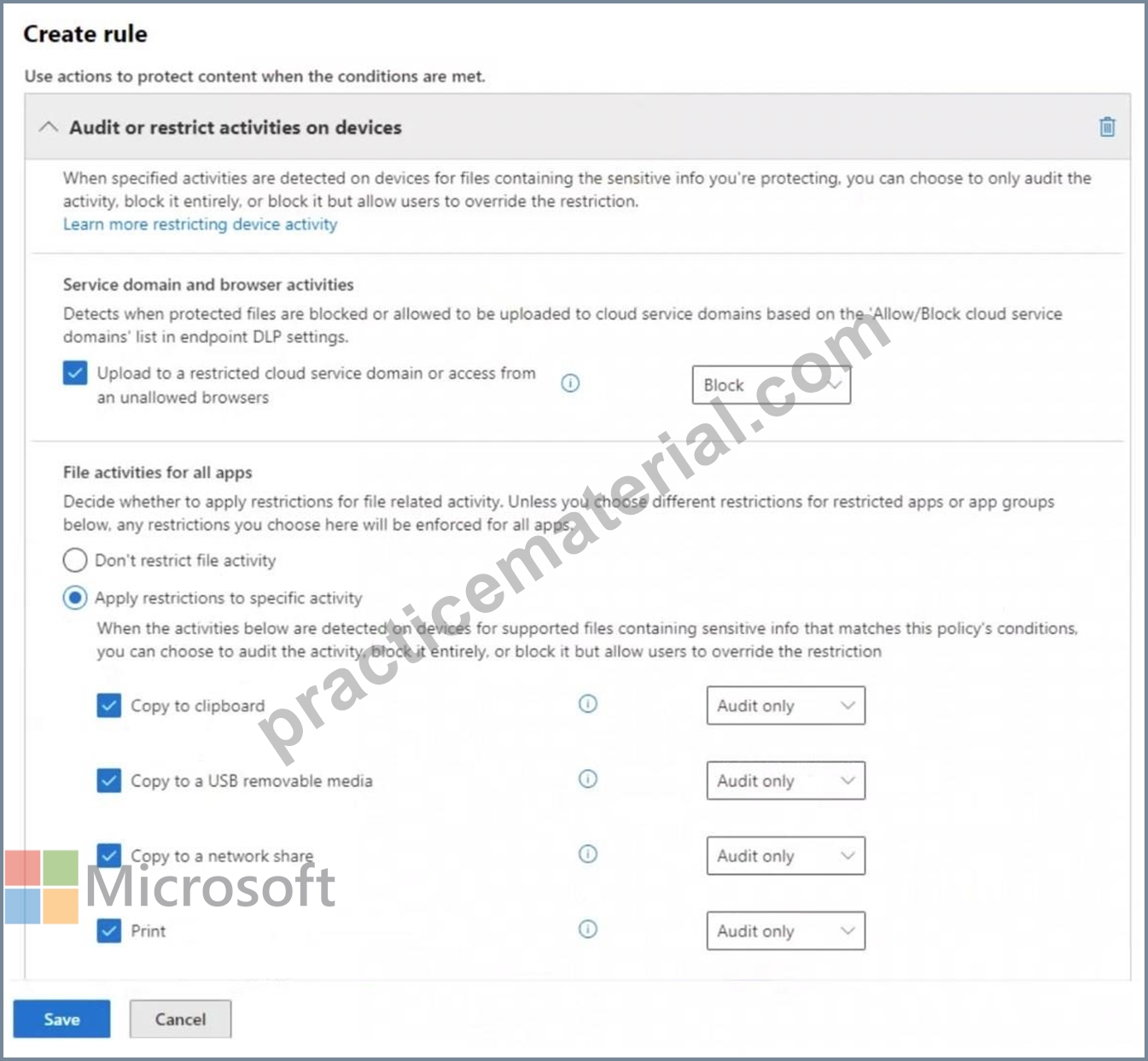
From a computer named Computer1, a user can sometimes upload files to cloud services and sometimes cannot. Other users experience the same issue.
What are two possible causes of the issue? Each correct answer presents a complete solution.
NOTE: Each correct selection is worth one point.
- A. The computers are NOT onboarded to Microsoft Purview.
- B. There are file path exclusions in the Microsoft 365 Endpoint data loss prevention (Endpoint DLP) settings.
- C. The Access by restricted apps action is set to Audit only.
- D. The Copy to clipboard action is set to Audit only.
- E. The unallowed browsers in the Microsoft 365 Endpoint data loss prevention (Endpoint DLP) settings are NOT configured.
Answer: B,E
Explanation:
The issue where users sometimes can upload files to cloud services and sometimes cannot suggests inconsistent enforcement of Endpoint DLP policies. This can be caused by the unallowed browsers in the Microsoft 365 Endpoint DLP settings are NOT configured. Also, there are file path exclusions in the Microsoft 365 Endpoint DLP settings.
Endpoint DLP can block uploads only when using unallowed browsers. If unallowed browsers are not configured, users might be able to bypass restrictions by switching to a different browser. This could explain why uploads sometimes work and sometimes don't, depending on which browser is used.
File path exclusions allow certain files or folders to be exempt from DLP restrictions. If a specific file location is excluded, files stored there won't trigger DLP policies, leading to inconsistent behavior. This could result in some uploads being blocked while others are allowed.
NEW QUESTION # 136
You have a Microsoft 365 alert named Alert2 as shown in the following exhibit.
You need to manage the status of Alert2.
To which status can you change Alert2?
- A. Investigating only
- B. Active or Investigating only
- C. Investigating, Active, or Dismissed
- D. Dismissed only
- E. The status cannot be changed.
Answer: C
Explanation:
Despite status showing resolved it still can be changed. Select alert > Under Alert status > Actions > select "Edit comments" > choose new status: Active, Investigating, Dismissed or Resolved. Alert status will change Note: Alert status When an alert is created, its status is Active. As you review the details of each alert, you can update its status to any of the states listed below:
Active: default state of the alert until its status is changed
Investigating: alert is under investigation
Resolved: the alert doesn't require further investigation or follow-up
Dismissed: the alert isn't relevant or doesn't need investigation
Reference:
https://learn.microsoft.com/en-us/purview/compliance-manager-alert-policies
https://docs.microsoft.com/en-us/microsoft-365/compliance/dlp-configure-view-alerts-policies
NEW QUESTION # 137
You create a retention label policy named Contoso_Policy that contains the following labels:
* 10 years then delete
* 5 years then delete
* Do not retain
Contoso.Policy is applied to content in Microsoft SharePoint Online sites.
After a couple of days, you discover the following messages on the Properties page of the label policy:
* Status: Off (Error)
* It's taking longer than expected to deploy the policy
You need to reinitiate the policy.
How should you complete the command? To answer, select the appropriate options in the answer area.
NOTE: Each correct selection is worth one point.
Answer:
Explanation:
Explanation:
NEW QUESTION # 138
You have a Microsoft 365 subscription.
You create a new trainable classifier.
You need to train the classifier.
Which source can you use to train the classifier?
- A. an NFS file share
- B. a Microsoft SharePoint Online site
- C. an on-premises Microsoft SharePoint Server site
- D. an Azure Files share
Answer: C
Explanation:
Reference:
https://learn.microsoft.com/en-us/purview/classifier-get-started-with
NEW QUESTION # 139
You have a Microsoft 36S ES subscription.
You need to create the Microsoft Purview insider risk management policies shown in the following table.
Which policy template should you use for each policy? To answer, drag the appropriate policy templates to the correct polices Each template may be used once more than once or not at all. You may need to drag the split bar between panes or scroll to view..
Answer:
Explanation:
Explanation:
Policy1 monitors printing of files by users that submitted their resignation. In Insider Risk Management, the Data theft by departing users template is designed for users marked as leaving and watches for exfiltration indicators such as printing, USB copy, or uploads to cloud services.
Ref: Microsoft Purview Insider Risk Management - Policy templates: Data theft by departing users (monitors exfiltration activities for departing users).
Policy2 monitors accidental sharing of data outside the organization by users in a priority user group. The template for this is Data leaks by priority users, which targets a defined priority user group and focuses on oversharing/leak indicators (external sharing, email to external, cloud uploads, etc.).
Ref: Insider Risk Management - Data leaks by priority users template.
Policy3 monitors downloading of files from SharePoint Online to personal cloud storage services. This is a classic data leak/exfiltration scenario without a departing/priority qualifier, so the general Data leaks template is appropriate (covers uploads to personal cloud services and other exfiltration vectors).
Ref: Insider Risk Management - Data leaks template (monitors exfiltration such as uploads to personal cloud services).
These mappings align with Microsoft's template purposes: Departing user exfiltration # Data theft by departing users; Priority users oversharing # Data leaks by priority users; Generic exfiltration # Data leaks.
NEW QUESTION # 140
Drag and Drop Question
You have a Microsoft 365 E5 subscription.
You need to label Microsoft Exchange Online emails that match the following conditions:
- Contain employment offers
- Contain offensive language
- Contain medical terms and conditions
The solution must minimize administrative effort.
Which type of data classification should you use for each condition? To answer, drag the appropriate data classification types to the correct conditions. Each data classification type may be used once, more than once, or not at all. You may need to drag the split bar between panes or scroll to view content.
NOTE: Each correct selection is worth one point.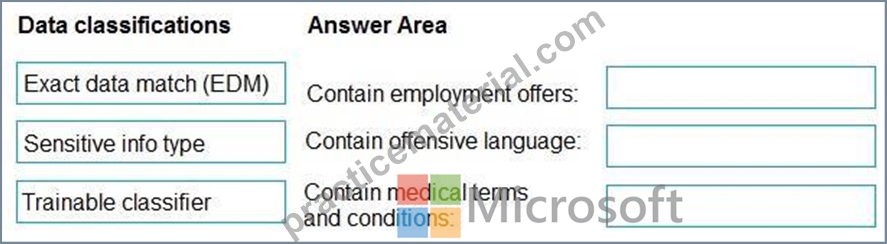
Answer:
Explanation:
Explanation:
Reference:
https://learn.microsoft.com/en-us/purview/classifier-learn-about
https://learn.microsoft.com/en-us/purview/classifier-tc-definitions
https://learn.microsoft.com/en-us/purview/sit-learn-about-exact-data-match-based-sits
NEW QUESTION # 141
You have a Microsoft 365 E5 subscription that uses Microsoft Purview.
You are creating an exact data match (EDM) classifier named EDM1.
For EDM1, you upload a schema file that contains the fields shown in the following table.
What is the maximum number of primary elements that EDM1 can have?
- A. 0
- B. 1
- C. 2
- D. 3
Answer: B
Explanation:
In Microsoft Purview Exact Data Match (EDM) classifiers, a primary element is a unique, identifying field used for data matching. EDM allows up to two primary elements per schema.
From the provided table, the Match mode indicates how data is analyzed:
- PP (EU Passport Number) Likely a primary element because it's unique.
- Name (All Full Names) Typically not a primary element as names are
common.
- DateOfBirth (Single-token) Usually a secondary element, not unique.
- AccountNumber (Multi-token) Can be a primary element, as it's a
unique identifier.
- Since EDM supports a maximum of two primary elements, the correct
answer is 2.
NEW QUESTION # 142
SIMULATION
Username and password
Use the following login credentials as needed:
To enter your username, place your cursor in the Sign in box and select the username below.
To enter your password, place your cursor in the Enter password box and select the password below.
Microsoft 365 Username:
[email protected]
Microsoft 365 Password: XXXXXXXXX
If the Microsoft Edge browser or Microsoft 365 portal does not load successfully, select the Microsoft Edge browser icon from the task bar, type the URL "https://admin.microsoft.com", and press Enter.
The following information is for technical support purposes only:
Lab Instance: XXXXXXXXX
Task 5
You need to simulate applying the Confidential - Finance label to all the content in the Exchange emails, the SharePoint sites, and the OneDrive accounts that contain the Credit Card Number sensitive info type.
Answer:
Explanation:
Simulation mode is supported for auto-labeling policies and woven into the workflow. You can't automatically label documents and emails until your policy has run at least one simulation.
Workflow for an auto-labeling policy:
1. Create and configure an auto-labeling policy.
2. Run the policy in simulation mode, which can take 12 hours to complete. The completed simulation triggers an email notification that's sent to the user configured to receive activity alerts.
3. Review the results, and if necessary, refine your policy.
4. Repeat step 3 as needed.
5. Deploy in production.
--
Creating an auto-labeling policy
Step 1: Sign in to the Microsoft Purview portal > Solutions > Information Protection > Policies > Auto-labeling policies.
Step 2: Select + Create auto-labeling policy. This starts the New policy configuration:
Step 3: For the Choose a label to auto-apply page: Select + Choose a label, select a label from the Choose a sensitivity label pane, and then select Next.
Step 4: For the page Choose info you want this label applied to: Select one of the templates, such as Financial or Privacy [Select Confidential - Finance label]. You can refine your search by using the search or dropdown box for countries or regions. Or, select Custom policy if the templates don't meet your requirements. Select Next.
Step 5: For the page Name your auto-labeling policy: Provide a unique name, and optionally a description to help identify the automatically applied label, locations, and conditions that identify the content to label.
Step 6: For the page Assign admin units: [Keep default]
If you don't want to restrict the policy by using administrative units, or your organization hasn't configured administrative units, keep the default of Full directory.
Step 7: For the page Choose locations where you want to apply the label: Select and specify locations for Exchange, SharePoint, and OneDrive.
Step 8: For the Set up common or advanced rules page: Keep the default of Common rules to define rules that identify content to label across all your selected locations. If you need different rules per location, including some rules that are only available for Exchange, or SharePoint sites and OneDrive accounts, select Advanced rules. Then select Next. [select Advanced rules. Then select Next]
8a. To select a sensitive information type or trainable classifier as a condition, under Content contains, select Add, and then choose Sensitive info types or Trainable classifiers.
8b. Select the the Credit Card Number sensitive info type.
Step 9: Depending on your previous choices, you'll now have an opportunity to create new rules by using conditions and exceptions. [Skip] Step 10: If your policy includes the Exchange location: Specify optional configurations [Skip] Step 11: For the Decide if you want to test out the policy now or later page: Select Run policy in simulation mode if you're ready to run the auto-labeling policy now, in simulation mode.
Step 12: For the Summary page: Review the configuration of your auto-labeling policy and make any changes that needed, and complete the configuration.
Reference:
https://learn.microsoft.com/en-us/purview/apply-sensitivity-label-automatically
NEW QUESTION # 143
Note: This question is part of a series of questions that present the same scenario. Each question in the series contains a unique solution that might meet the stated goals. Some question sets might have more than one correct solution, while others might not have a correct solution.
After you answer a question in this section, you will NOT be able to return to it. As a result, these questions will not appear in the review screen.
You have a Microsoft 365 tenant and 500 computers that run Windows 11. The computers are onboarded to Microsoft Purview.
You discover that a third-party application named Tailspin_scanner.exe accessed protected sensitive information on multiple computers. Tailspin_scanner.exe is installed locally on the computers.
You need to block Tailspin_scanner.exe from accessing sensitive documents without preventing the application from accessing other documents.
Solution: From the Microsoft 365 Endpoint data loss prevention (Endpoint DLP) settings, you add a folder path to the file path exclusions.
Does this meet the goal?
- A. Yes
- B. No
Answer: B
Explanation:
Adding a folder path to the file path exclusions in Microsoft 365 Endpoint DLP does not prevent Tailspin_scanner.exe from accessing protected sensitive information. Instead, it would exclude those files from DLP protection, which is not the intended outcome.
To block Tailspin_scanner.exe from accessing sensitive documents while allowing it to access other files, the correct solution is to use Microsoft Purview Endpoint Data Loss Prevention (Endpoint DLP) and add Tailspin_scanner.exe to the Restricted Apps list.
Endpoint DLP allows you to block specific applications from accessing sensitive files while keeping general access available. Restricted Apps List in Endpoint DLP ensures that Tailspin_scanner.exe cannot open, copy, or process protected documents, but it can still function normally for non-sensitive content.
NEW QUESTION # 144
You have a Microsoft 365 E5 subscription that contains the users shown in the following table.
You plan to create a Microsoft Purview insider risk management case named Case1.
Which insider risk management object should you select first, and which users will be added as contributors for Case1 by default?
To answer, select the appropriate options in the answer area.
NOTE: Each correct selection is worth one point.
Answer:
Explanation: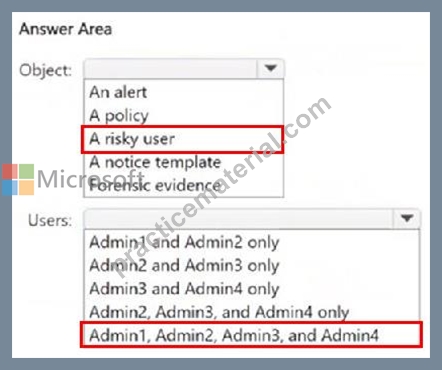
NEW QUESTION # 145
You have a Microsoft 365 E5 subscription.
You plan to implement Microsoft Purview Insider Risk Management.
You obtain a file named File1.csv that contains employee resignation data.
You need to implement the HR data connector and upload File1.csv by using the connector.
Which three actions should you perform in sequence? To answer, move the appropriate actions from the list of actions to the answer area and arrange them in the correct order.
Answer:
Explanation:
Explanation:
NEW QUESTION # 146
You have Microsoft 365 E5 tenant that uses Microsoft Teams and contains two users named User1 and User2.
You create a data loss prevention (DLP) policy that is applied to the Teams chat and channel messages location for User1 and User2.
Which Teams entities will have DLP protection?
- A. 1:1/n chats and private channels only
- B. 1:1/n chats and general channels only
- C. 1:1/n chats, general channels, and private channels
Answer: A
Explanation:
Scope of DLP protection
DLP protection is applied differently to Teams entities.
Reference:
https://learn.microsoft.com/en-us/microsoft-365/compliance/dlp-microsoft-teams
NEW QUESTION # 147
You have a Microsoft 365 E5 subscription.
You need to enable support for sensitivity labels in Microsoft SharePoint Online.
What should you use?
- A. the Microsoft Purview portal
- B. the SharePoint admin center
- C. the Microsoft Entra admin center
- D. the Microsoft 365 admin center
Answer: B
Explanation:
To enable support for sensitivity labels in Microsoft SharePoint Online, you must configure the setting in the SharePoint admin center.
Sensitivity labels in SharePoint Online allow labeling and protection of files stored in SharePoint and OneDrive. This feature must be enabled in the SharePoint admin center → Settings → Information protection to allow sensitivity labels to apply encryption and protection to stored documents.
NEW QUESTION # 148
You have a Microsoft 365 E5 subscription.
You need to enable support for sensitivity labels in Microsoft SharePoint Online.
What should you use?
- A. the Microsoft Purview portal
- B. the SharePoint admin center
- C. the Microsoft Entra admin center
- D. the Microsoft 365 admin center
Answer: B
Explanation:
To enable support for sensitivity labels in Microsoft SharePoint Online, you must configure the setting in the SharePoint admin center.
Sensitivity labels in SharePoint Online allow labeling and protection of files stored in SharePoint and OneDrive. This feature must be enabled in the SharePoint admin center # Settings # Information protection to allow sensitivity labels to apply encryption and protection to stored documents.
NEW QUESTION # 149
You have a Microsoft 36S subscription that contains the users shown in the following table.
You create the data loss prevention (DLP) policies shown in the following table.
For each of the following statements, select Yes if the statement is true. Otherwise, select No.
NOTE: Each correct selection is worth one point.
Answer:
Explanation:
Explanation:
If User1 sends an email externally with five credit card numbers, Policy1 applies. # Yes If User1 sends an email externally with five credit card numbers, Policy2 also applies. # No (stopped by Policy1).
If User2 sends an email externally with five credit card numbers, Policy2 applies. # Yes
# Policy1
Order: 0 (highest priority).
Scope: Exchange email for the Finance distribution group.
Conditions: Content shared externally AND contains # 5 credit card numbers.
Actions: Encrypt with "Encrypt email" option.
Additional options: Stop processing additional DLP policies and rules.
# Policy2
Order: 1 (lower priority).
Scope: All Exchange email.
Conditions: Content shared externally AND contains # 5 credit card numbers.
Actions: Restrict/block OR encrypt depending on configuration, notify admin.
Additional options: None.
# User-by-user Analysis
User1 (Finance group):
Policy1 applies first (priority 0).
If User1 sends email externally with # 5 CCNs, Policy1 encrypts the email and stops further processing.
Therefore, Policy2 never applies to User1.
User2 (Sales group):
Not in Finance, so Policy1 does not apply.
Policy2 applies (all Exchange email).
If User2 sends email externally with # 5 CCNs, Policy2 action is enforced (restrict/block or encrypt).
NEW QUESTION # 150
Hotspot Question
You have a Microsoft 365 E5 subscription.
You are implementing insider risk management.
You need to create an insider risk management notice template and format the message body of the notice template.
How should you configure the template? To answer, select the appropriate options in the answer area.
NOTE: Each correct selection is worth one point.
Answer:
Explanation: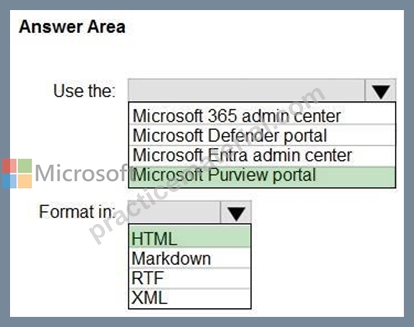
Explanation:
Box 1: Microsoft Purview portal
Create insider risk management notice templates
To create a new insider risk management notice template, you'll use the notice creation tool in Insider risk management solution in the Microsoft Purview portal.
Box 2: HTML
HTML for notices
If you'd like to create more than a simple text-based email message for notifications, you can create a more detailed message by using HTML in the message body field of a notice template.
Reference:
https://learn.microsoft.com/en-us/purview/insider-risk-management-notices
NEW QUESTION # 151
You have a Microsoft 365 E5 subscription.
Your company has two departments named department1 and department2.
You configure an information barrier (IB) policy that prevents communication between the users in department1 and department2.
You discover that a user named User1 in department1 can still communicate with the users in department2. You validate that the policy works properly for all other users.
You need to ensure that User1 cannot communicate with the department2 users.
What should you modify?
- A. the group assignments of User1
- B. the IB segments
- C. the IB policy
- D. the user account attributes of User1
Answer: D
Explanation:
https://learn.microsoft.com/en-us/purview/information-barriers-attributes
NEW QUESTION # 152
You have a Microsoft 365 E5 subscription that contains two users named User1 and Admin1.
Admin1 manages audit retention policies for the subscription.
You need to ensure that the audit logs of User1 will be retained for 10 years.
What should you do first?
- A. Assign a Microsoft Purview Audit (Premium) add-on license to Admin1.
- B. Assign a 10-year audit log retention add-on license to User1.
- C. Assign a 10-year audit log retention add-on license to Admin1.
- D. Assign a Microsoft Purview Audit (Premium) add-on license to User1.
Answer: B
Explanation:
To retain a user's Microsoft 365 audit logs for 10 years, you need the 10-Year Audit Log Retention add-on license, which must be assigned to that specific user in addition to an existing Microsoft 365 E5 license or Microsoft 365 E5 Compliance add-on license.
Required Licenses & Components
Microsoft 365 E5 License: This is the base license that enables longer-term retention.
10-Year Audit Log Retention Add-on: This is a separate license that must be purchased and assigned to the specific user whose audit logs you need to retain for 10 years.
Reference:
https://learn.microsoft.com/en-us/purview/audit-log-retention-policies
NEW QUESTION # 153
You have a Microsoft 36S subscription.
In Microsoft Exchange Online, you configure the mail flow rule shown in the following exhibit.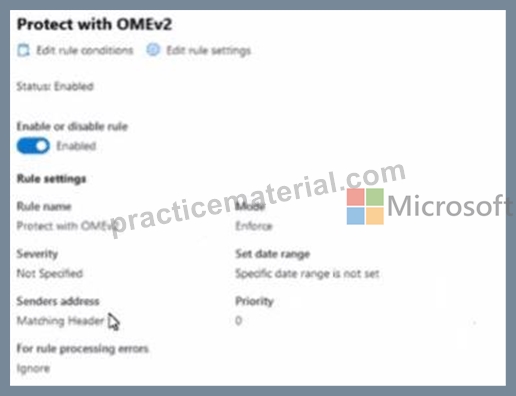
Use the drop-down menus to select the answer choice that completes each statement based on the information presented in the graphic.
NOTE: Each correct selection is worth one point.
Answer:
Explanation:
Explanation:
The mail flow rule is configured to apply OMEv2 protection ("Protect with OMEv2") to messages. With OMEv2:
Recipients on consumer mail systems (such as Gmail) receive a link-protected message and must authenticate to the Office 365 Message Encryption portal to view the content.
Microsoft 365 recipients (even in external tenants) get a native reading experience in Outlook/OWA where protected messages are opened directly with automatic decryption using their Microsoft 365 identity-no separate OME portal workflow is required.
These behaviors are documented by Microsoft for OMEv2 user experiences for different recipient types and clients. See: Microsoft Purview Office 365 Message Encryption overview and user experiences for external Microsoft 365 and consumer email recipients.
NEW QUESTION # 154
At the end of a project, you upload project documents to a Microsoft SharePoint Online library that contains many files. The following is a sample of the project document file names:
* aei_AA989.docx
* bd_WS098.docx
* cei_DF112.docx
* ebc_QQ454.docx
* ecc_BB565.docx
All documents that use this naming format must be labeled as Project Documents:
You need to create an auto-apply retention label policy.
What should you use to identify the files?
- A. A trainable classifier
- B. A sensitive info type
- C. A retention label
Answer: B
Explanation:
To auto-apply a retention label to documents based on a specific file naming pattern (like abc_XX123.docx), you need to use a detection method that can recognize patterns.
Retention label: This is the outcome (what you apply), not the detection mechanism. It cannot itself identify files.
Trainable classifier: Used for identifying content based on text meaning/semantics (e.g., HR documents, contracts). It is not suitable for structured patterns like file names.
Sensitive info type (SIT): Best option. Custom SITs can be created with regular expressions to match naming formats (such as xxx_XX999). Once the SIT is defined, you can configure an auto-apply retention label policy to apply the "Project Documents" label when the SIT is detected.
Reference: Auto-apply a retention label
NEW QUESTION # 155
You have a Microsoft 365 E5 subscription.
You create a data loss prevention (DLP) policy and select.
Use Notifications to inform your users and help educate them on the proper use of sensitive info.
Which apps will show the policy tip?
- A. Outlook on the web only
- B. Outlook on the web. Outlook Win32, and Outlook for iOS and Android
- C. Outlook Win32 only
- D. Outlook for iOS and Android only
- E. Outlook Win32 and Outlook for iOS and Android only
- F. Outlook on the web and Outlook Win32 only
Answer: B
Explanation:
DLP policy tips are shown across all supported Outlook clients: Outlook on the web (OWA), Outlook desktop (Win32), and Outlook mobile apps (iOS and Android). This ensures users are informed when sending sensitive information across any supported client.
Reference: Policy tips in DLPDLP policy tips are shown across all supported Outlook clients: Outlook on the web (OWA), Outlook desktop (Win32), and Outlook mobile apps (iOS and Android). This ensures users are informed when sending sensitive information across any supported client.
Reference: Policy tips in DLP
NEW QUESTION # 156
You have a Microsoft 365 E5 subscription that contains a Microsoft Teams channel named Channel1. Channel1 contains research and development documents.
You plan to implement Microsoft 365 Copilot for the subscription.
You need to prevent the contents of files stored in Channel1 from being included in answers generated by Copilot and shown to unauthorized users.
What should you use?
- A. Microsoft Purview insider risk management
- B. sensitivity labels
- C. Microsoft Purview Information Barriers (IBs)
- D. data loss prevention (DLP)
Answer: B
Explanation:
To prevent the contents of files stored in Channel1 from being included in Microsoft 365 Copilot responses and ensure unauthorized users cannot access them, you should use Microsoft Purview Sensitivity Labels.
Sensitivity labels allow you to classify, protect, and restrict access to sensitive files. You can configure label-based encryption and access control policies to ensure that only authorized users can access or interact with the files in Channel1. Microsoft 365 Copilot respects sensitivity labels, meaning if a file is labeled with restricted permissions, Copilot will not use it in generated responses for unauthorized users.
NEW QUESTION # 157
You have a Microsoft 365 E5 subscription that contains two users named User1 and User2.
On January 1, you create the sensitivity label shown in the following table.
On January 2, you publish Label1 to User1.
On January 3, User1 creates a Microsoft Word document named Doc1 and applies Label! to the document.
On January 4. User2 edits Doc1.
On January 15. you increase the content expiry period for Label1to 28 days. When will access to Doc1 expire for User2?
- A. January 24
- B. January 25
- C. January 23
- D. January 31
Answer: A
NEW QUESTION # 158
......
The New SC-401 2026 Updated Verified Study Guides & Best Courses: https://www.practicematerial.com/SC-401-exam-materials.html
Exam Study Guide Free Practice Test LAST UPDATED : https://drive.google.com/open?id=1tmVMeNx6fEW0E42WUFF8_supFybppESw
